
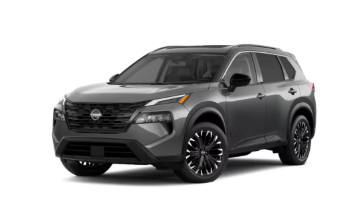
Nissan Rogue Apple CarPlay Not Working: Causes and Fixes

If Apple CarPlay is not working in your Nissan Rogue, the problem is often easier to solve than it first appears. A bad USB cable, the wrong USB port, disabled CarPlay settings, an outdated iPhone, or a failed wireless connection can all prevent your phone from connecting properly.
The good news is that most Nissan Rogue Apple CarPlay problems can be fixed at home without replacing the infotainment system.
In this guide, we’ll explain why Nissan Rogue Apple CarPlay is not working, how to troubleshoot wired and wireless CarPlay, what to do when your iPhone is not detected, and when the problem may actually be coming from the Rogue’s USB port or infotainment hardware.
Content in this publication
- Why Is Apple CarPlay Not Working in My Nissan Rogue?
- Nissan Rogue Apple CarPlay Not Connecting
- Check Whether Your Nissan Rogue Supports Apple CarPlay
- Nissan Rogue Apple CarPlay Not Working With USB
- Nissan Rogue Apple CarPlay Not Detecting iPhone
- Make Sure Siri Is Enabled
- Check Screen Time Restrictions
- Nissan Rogue Wireless Apple CarPlay Not Working
- Check NissanConnect Apple CarPlay Settings
- Nissan Rogue Apple CarPlay Connected but Not Showing
- Nissan Rogue Apple CarPlay Keeps Disconnecting
- Clean the iPhone Charging Port
- Try Another iPhone
- Update Your iPhone
- Check for Nissan Infotainment Software Updates
- Nissan Rogue CarPlay Black Screen
- Nissan Rogue Apple CarPlay Has No Sound
- Does Apple CarPlay Work While the iPhone Is Locked?
- When the Nissan Rogue USB Port Could Be the Problem
- Could the Nissan Rogue Infotainment System Be Faulty?
- Fastest Way to Fix Nissan Rogue Apple CarPlay
- Can You Reset Nissan Rogue Apple CarPlay?
- When Should You Take Your Nissan Rogue to a Dealer?
- Frequently Asked Questions
- Why did Apple CarPlay suddenly stop working in my Nissan Rogue?
- Why does my Nissan Rogue charge my iPhone but CarPlay doesn't work?
- Why won't my Nissan Rogue connect to wireless Apple CarPlay?
- How do I reconnect Apple CarPlay in my Nissan Rogue?
- Does replacing the USB cable fix Nissan Rogue Apple CarPlay?
- Final Thoughts
Why Is Apple CarPlay Not Working in My Nissan Rogue?
Apple CarPlay requires several systems to communicate correctly at the same time.
Your iPhone, USB cable or wireless connection, NissanConnect infotainment system, Siri settings, Wi-Fi, Bluetooth, and CarPlay permissions can all affect the connection.
Some of the most common causes include:
- A damaged or low-quality USB cable.
- Connecting the iPhone to the wrong USB port.
- Apple CarPlay being disabled on the iPhone.
- CarPlay startup being disabled in NissanConnect.
- Wi-Fi or Bluetooth being disabled for wireless CarPlay.
- An outdated version of iOS.
- A temporary Nissan infotainment system glitch.
- The Rogue remembering an old or corrupted iPhone connection.
- Dirt or damage inside the USB port.
- A problem with the iPhone's charging port.
Nissan's own NissanConnect troubleshooting information specifically recommends checking the USB connection, cable, CarPlay settings, and device compatibility when CarPlay fails to start.
Nissan Rogue Apple CarPlay Not Connecting
When a Nissan Rogue recognizes an iPhone but CarPlay does not launch, we normally want to determine whether the problem is coming from the phone or the vehicle.
Start by disconnecting the iPhone completely.
Turn the vehicle off, restart your iPhone, start the Rogue again, and reconnect the phone.
Apple specifically recommends restarting both the iPhone and vehicle when troubleshooting CarPlay connection problems.
If the connection returns after restarting everything, the problem was probably a temporary communication error rather than a failed component.
Check Whether Your Nissan Rogue Supports Apple CarPlay
Before troubleshooting the system extensively, confirm that your particular Nissan Rogue is equipped with Apple CarPlay.
CarPlay availability varies depending on model year, trim, infotainment system, and market.
Likewise, wireless Apple CarPlay should not be assumed simply because wired CarPlay is available.
Some Nissan systems support wired CarPlay only, while newer or differently equipped systems can support wireless Apple CarPlay.
Nissan describes wireless CarPlay as an equipment-dependent feature, and its current Rogue connectivity information also shows wireless Apple CarPlay on appropriately equipped versions.
If your Rogue was never equipped with wireless CarPlay, repeatedly trying Bluetooth pairing will not convert wired CarPlay into wireless CarPlay.
Nissan Rogue Apple CarPlay Not Working With USB
USB-related problems are among the first things we would check when wired Apple CarPlay suddenly stops working.
Check the USB Cable
A cable can charge an iPhone while still being unable to transfer data reliably.
This is one of the reasons CarPlay problems can be confusing.
You might connect the phone, see the battery charging symbol, and assume the cable is working perfectly. However, CarPlay requires data communication in addition to electrical power.
Try another high-quality data-capable USB cable.
Apple recommends trying a different USB cable when wired CarPlay does not work.
Nissan also advises using an appropriate Apple-compatible cable and checking whether the cable is damaged.
Make Sure You Are Using the Correct Nissan Rogue USB Port
Not every USB port inside a Rogue necessarily performs the same function.
Some ports may primarily be intended for charging, while another is used for smartphone integration.
For example, Nissan's 2023 Rogue quick reference guide directs owners to connect a compatible iPhone to the USB connection port located beneath the climate controls to use Apple CarPlay.
Nissan's broader CarPlay documentation also explains that on applicable Nissan systems, Apple CarPlay uses the designated primary USB connection rather than every USB port in the cabin.
So if your Nissan Rogue CarPlay stopped working after you moved the cable to a different port, move it back to the primary smartphone USB port.
Nissan Rogue Apple CarPlay Not Detecting iPhone
If the Rogue says there is no smartphone connected, we would next check whether the iPhone is allowing CarPlay.
On the iPhone, open:
Settings > General > CarPlay
Your Nissan should normally appear as a recognized vehicle after successful setup.
If it appears but refuses to connect, select the Rogue and choose Forget This Car.
Then reconnect it as though you were setting up CarPlay for the first time.
Apple recommends removing the vehicle from the CarPlay settings and setting it up again when connection problems persist.
This often fixes corrupted pairing information.
Make Sure Siri Is Enabled
CarPlay depends heavily on Siri.
If Siri has been disabled, some CarPlay functions may fail or the system may not behave normally.
Apple recommends confirming that Siri is turned on when diagnosing CarPlay problems.
You can check your Siri settings from the iPhone Settings app.
After activating Siri, reconnect the phone and test CarPlay again.
Check Screen Time Restrictions
CarPlay can also be disabled through iPhone restrictions.
This is particularly easy to overlook because the USB cable and Nissan infotainment system can both appear normal.
Apple recommends checking:
Settings > Screen Time > Content & Privacy Restrictions
If restrictions are active, verify that CarPlay is allowed.
If CarPlay was blocked here, enabling it may immediately restore the connection.
Nissan Rogue Wireless Apple CarPlay Not Working
Wireless Apple CarPlay has slightly different troubleshooting requirements.
Your iPhone generally needs both Bluetooth and Wi-Fi enabled.
Apple specifically recommends checking Bluetooth, Wi-Fi, and automatic connection settings when wireless CarPlay fails.
You may be interested in reading Toyota Corolla AE86 Engine Swap – The Ultimate Guide
Nissan likewise instructs owners of compatible vehicles to enable Wi-Fi and Bluetooth before pairing an iPhone with NissanConnect for wireless CarPlay.
Remove and Reconnect Your iPhone
One of the most effective solutions for wireless Nissan CarPlay problems is deleting the existing connection.
Nissan's NissanConnect manual specifically recommends deleting the iPhone from the vehicle's device list and reconnecting it if wireless Apple CarPlay cannot be used.
Remove the Nissan from the CarPlay menu on the iPhone as well.
Then restart both systems before pairing them again.
Check Wi-Fi Auto-Join
Wireless CarPlay doesn't rely on Bluetooth alone.
Bluetooth helps establish the connection, but Wi-Fi is important for wireless CarPlay communication.
Open your iPhone's Wi-Fi settings and find the CarPlay network associated with your vehicle.
Make sure Auto-Join is enabled.
Apple specifically identifies this setting as something to check when wireless CarPlay does not connect.
Check NissanConnect Apple CarPlay Settings
The vehicle itself may also be preventing CarPlay from launching automatically.
On compatible NissanConnect systems, Nissan provides a Start-up Options setting for Apple CarPlay.
Depending on the system, you may find it under a path similar to:
Menu > Connections > Devices > iPhone > Smartphone Projection
Nissan documents three startup options: Always, Ask, and Never. If the setting is configured as Never, CarPlay will not automatically activate when the iPhone is connected.
Changing the setting to Always is generally the easiest option if we want CarPlay to launch whenever the phone connects.
Nissan Rogue Apple CarPlay Connected but Not Showing
Sometimes the iPhone connects successfully, but the Apple CarPlay screen does not appear.
This doesn't always mean that CarPlay has failed.
The Nissan infotainment system may simply remain on its regular home screen.
Apple recommends manually selecting the CarPlay icon if CarPlay does not launch automatically.
On the 2023 Nissan Rogue, Nissan states that owners can return to CarPlay from the main menu through the Apple CarPlay key or the smartphone connection section of the infotainment system.
Look for Apple CarPlay, Smartphone Connection, or a CarPlay icon on the center display.
Nissan Rogue Apple CarPlay Keeps Disconnecting
A CarPlay system that connects but repeatedly disconnects usually points us toward a slightly different group of problems.
For wired CarPlay, the cable and connectors become the main suspects.
Try gently moving the cable near each connector while CarPlay is operating.
If CarPlay immediately disconnects, you may have:
A damaged cable, a loose iPhone charging port, or a loose vehicle USB port.
Wireless CarPlay interruptions can instead result from temporary Wi-Fi or Bluetooth problems.
Deleting and recreating the wireless connection is often worth trying before assuming the vehicle has a hardware fault.
Clean the iPhone Charging Port
Pocket lint inside an iPhone's charging port can cause surprisingly inconsistent CarPlay behavior.
The phone may still charge because electrical contact is being made, while the data connection repeatedly drops.
Inspect the port carefully with good lighting.
If debris is visible, follow Apple's recommended cleaning practices for your device rather than inserting metal objects into the connector.
After cleaning it, connect the iPhone again and check whether CarPlay remains stable.
Try Another iPhone
Testing a second compatible iPhone is one of the fastest ways to separate a vehicle problem from a phone problem.
If another iPhone immediately connects to Apple CarPlay, the Rogue's infotainment system and USB port are probably functioning.
We would then focus on the original phone's cable, settings, charging port, iOS installation, or CarPlay configuration.
If no iPhone works, the probability of a vehicle-side problem becomes much higher.
Update Your iPhone
Software compatibility problems can sometimes occur after updates or because a phone is running an older version of iOS.
Apple recommends having the latest available iOS version when troubleshooting CarPlay.
Open:
Settings > General > Software Update
Install any appropriate updates and restart the iPhone afterward.
Then test CarPlay again.
Check for Nissan Infotainment Software Updates
Your phone isn't the only device running software.
The NissanConnect infotainment system also uses software and firmware that can affect smartphone connectivity.
Apple recommends making sure the vehicle's CarPlay stereo is using the latest firmware available from the manufacturer.
The exact update process varies by Rogue model year and infotainment version.
Some updates may be available through the vehicle itself, while other problems may require a Nissan dealer to check the system.
Nissan Rogue CarPlay Black Screen
A black screen doesn't necessarily mean that the entire infotainment unit has failed.
Nissan's troubleshooting information acknowledges that CarPlay users can experience performance problems such as slow operation, error messages, or a blank screen when accessing features such as maps.
Nissan recommends checking the iPhone, data connection, cable, and restarting or reconnecting the phone in these situations.
You may be interested in readingToyota Corolla AE86 Engine Swap – The Ultimate GuideYou may be interested in reading
 Does the Toyota Camry Have CVT Transmission?
Start by disconnecting the iPhone.
Restart the phone, restart the vehicle, and reconnect CarPlay.
If the Nissan screen works normally everywhere except CarPlay, the problem is more likely related to smartphone projection or the iPhone than to the display panel itself.
Nissan Rogue Apple CarPlay Has No Sound
CarPlay can occasionally display correctly while producing no audio.
First, increase the vehicle's media volume while music or navigation audio is actively playing.
The Rogue can maintain different volume levels for different audio functions.
Also confirm that the CarPlay audio source is selected.
If Bluetooth audio was previously playing, switching between Bluetooth and CarPlay may occasionally leave the audio source incorrectly selected.
Nissan notes that Bluetooth audio cannot simultaneously be streamed from the same device while that device is operating through Apple CarPlay.
Disconnecting and reconnecting the iPhone usually helps reestablish the proper audio route.
Does Apple CarPlay Work While the iPhone Is Locked?
Normally, yes, but the iPhone's CarPlay permissions must allow the connection.
Go to:
Settings > General > CarPlay > Your Nissan
Check the available CarPlay permissions.
If your Rogue connects properly while the iPhone is unlocked but stops working after you lock the phone, review these permissions and reconnect the vehicle.
When the Nissan Rogue USB Port Could Be the Problem
We shouldn't automatically blame the infotainment system whenever CarPlay fails.
However, the vehicle's USB connection can eventually become damaged.
Possible warning signs include the phone failing to charge, multiple cables producing the same problem, several compatible iPhones failing to connect, or the USB connection cutting out when the cable moves.
At that point, the USB port or its wiring deserves inspection.
A Nissan technician can check whether the USB module is receiving power and communicating correctly with the infotainment unit.
Could the Nissan Rogue Infotainment System Be Faulty?
It is possible, although we would consider this later in the diagnostic process rather than first.
A vehicle-side infotainment issue becomes more plausible when several unrelated functions malfunction simultaneously.
For example, you may experience a frozen touchscreen, repeated system reboots, Bluetooth failures, USB failures, missing menus, or CarPlay problems with multiple phones and cables.
If the entire infotainment system is behaving abnormally, professional diagnosis makes more sense than continuing to replace phone cables.
Fastest Way to Fix Nissan Rogue Apple CarPlay
If we wanted to troubleshoot the problem as efficiently as possible, we would start with the cheapest and most common causes.
Try another cable and verify that you are using the correct data-capable USB port.
Then restart the iPhone and vehicle.
Confirm Siri and CarPlay permissions are enabled.
If you are using wireless CarPlay, verify Bluetooth and Wi-Fi are active.
Next, remove the Rogue from the iPhone's CarPlay settings and remove the iPhone from NissanConnect.
Pair everything again.
Only after those steps would we start investigating firmware updates, USB hardware problems, or infotainment faults.
Can You Reset Nissan Rogue Apple CarPlay?
Yes, but resetting CarPlay does not necessarily require resetting the entire vehicle infotainment system.
The safest first reset is simply removing the connection.
On the iPhone, go to:
Settings > General > CarPlay > Nissan Rogue > Forget This Car
Then remove the iPhone from the NissanConnect device menu.
Restart both the vehicle and iPhone and reconnect them.
Apple and Nissan both recommend removing or recreating connections as part of CarPlay troubleshooting.
This is preferable to immediately performing a full factory reset, which can erase saved radio presets, paired devices, navigation information, and other settings depending on the system.
When Should You Take Your Nissan Rogue to a Dealer?
A dealership visit becomes worthwhile when basic troubleshooting does not solve the problem and evidence points toward the vehicle.
For example, professional diagnosis may be appropriate if several compatible iPhones fail, multiple good USB cables fail, the vehicle's USB port does not provide a stable connection, NissanConnect repeatedly crashes, or other infotainment features also malfunction.
Before visiting the dealer, write down your Rogue's model year, trim level, iPhone model, iOS version, and whether the issue happens with wired CarPlay, wireless CarPlay, or both.
Those details can significantly narrow the diagnosis.
Frequently Asked Questions
Why did Apple CarPlay suddenly stop working in my Nissan Rogue?
A sudden failure can be caused by a temporary software glitch, damaged USB cable, incorrect USB port, corrupted CarPlay pairing, iPhone update, disabled Wi-Fi or Bluetooth, or an infotainment software issue. Restart the iPhone and vehicle before moving to more complicated troubleshooting.
Why does my Nissan Rogue charge my iPhone but CarPlay doesn't work?
Charging does not prove that the cable or USB connection can transfer data. A damaged cable can still provide electrical power while failing to maintain the data connection CarPlay requires. Try another high-quality data cable and verify that you are using the Rogue's designated smartphone USB port.
Why won't my Nissan Rogue connect to wireless Apple CarPlay?
First confirm that your Rogue is actually equipped with wireless Apple CarPlay. If it is, make sure both Bluetooth and Wi-Fi are enabled on the iPhone. Remove the existing vehicle connection from both NissanConnect and the iPhone, restart both devices, and pair them again.
How do I reconnect Apple CarPlay in my Nissan Rogue?
Go to Settings > General > CarPlay on your iPhone, remove your Nissan Rogue, and delete the iPhone from the NissanConnect device list. Restart the phone and vehicle, then reconnect through the appropriate USB port or wireless pairing procedure.
Does replacing the USB cable fix Nissan Rogue Apple CarPlay?
It frequently can. USB cables are one of the simplest causes to eliminate, particularly when CarPlay disconnects intermittently or the phone charges without launching CarPlay. Apple and Nissan both recommend checking or changing the cable when troubleshooting wired CarPlay.
Final Thoughts
When Nissan Rogue Apple CarPlay is not working, we shouldn't immediately assume the infotainment system needs expensive repairs.
Start with the basics: check the USB cable, use the correct USB port, restart the phone and Rogue, verify Siri and CarPlay permissions, and confirm that Wi-Fi and Bluetooth are active when using wireless CarPlay.
If that doesn't work, remove the existing CarPlay connection from both the iPhone and NissanConnect and set it up again.
You may be interested in readingToyota Corolla AE86 Engine Swap – The Ultimate GuideYou may be interested in reading
Does the Toyota Camry Have CVT Transmission?You may be interested in reading
 Toyota Camry Trim Levels 2014: A Detailed Guide to Choosing the Best
Those simple steps solve a large percentage of connectivity problems.
If multiple iPhones and cables fail and the Rogue's USB, Bluetooth, or infotainment functions are also behaving incorrectly, the problem may be on the vehicle side. At that point, checking for Nissan software updates or having the USB and infotainment system professionally diagnosed is the logical next step.
If you want to know other articles similar to Nissan Rogue Apple CarPlay Not Working: Causes and Fixes you can visit the category Common Problems.
Nissan Rogue No Key Detected: Causes, Fixes, and What to Do
Nissan Rogue Engine Problems: Common Issues, Symptoms, Years and Solutions
Vauxhall Agila Automatic Gearbox Problems: Symptoms, Causes and Fixes
Honda Passport Issues: Common Problems, Symptoms, and What to Check
Nissan Rogue Transmission Problems: Symptoms, Causes, and Fixes
Nissan Rogue Issues: Common Problems, Warning Signs, and What Owners Should Know
Leave a Reply
More content of your interest