

Suzuki Vitara Infotainment System Update: Complete Guide to Updating, Fixing, and Optimizing Your System

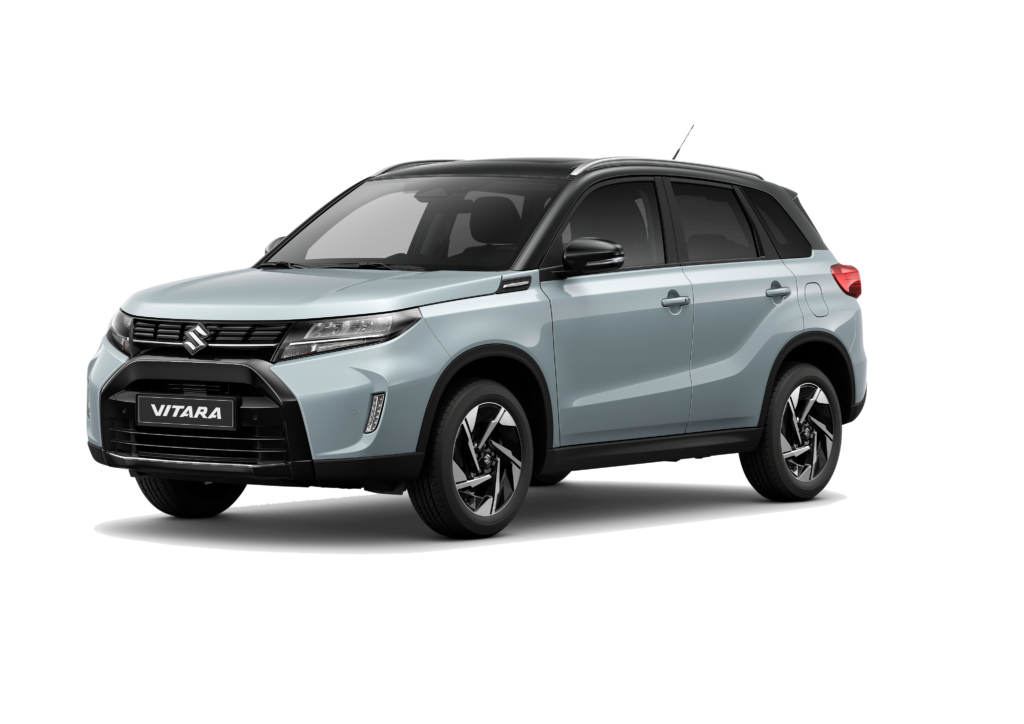
Modern cars are no longer just machines that take us from point A to point B. They’ve become rolling technology hubs—smart, connected, and constantly evolving. And right at the heart of that experience sits the infotainment system.
If you own a Suzuki Vitara, chances are you rely on its infotainment system every day for navigation, music, calls, and smartphone connectivity. But like a smartphone or laptop, it occasionally needs an update to stay sharp.
So let’s walk through everything you need to know about the Suzuki Vitara infotainment system update—from why updates matter to how you can install them safely and what to do if things go sideways.
Content in this publication
- Understanding the Suzuki Vitara Infotainment System
- Why Infotainment Updates Matter
- Which Suzuki Vitara Models Receive Infotainment Updates
- How the Suzuki Vitara Infotainment Update Works
- USB Software Update Method
- Step-by-Step Suzuki Vitara Infotainment Update
- How to Check Your Current Software Version
- Common Infotainment Issues Fixed by Updates
- Navigation Map Updates
- Dealer Infotainment Updates
- Important Tips Before Updating
- Troubleshooting Failed Infotainment Updates
- Future of Suzuki Vitara Infotainment Technology
- Simple Maintenance Tips for the Infotainment System
- Final Thoughts on Suzuki Vitara Infotainment System Updates
- Frequently Asked Questions
Understanding the Suzuki Vitara Infotainment System
Before we dive into updates, it helps to understand what exactly we’re updating.
The Suzuki Vitara infotainment system is the digital brain of the vehicle’s multimedia experience. It connects your phone, manages audio, controls navigation, and displays vehicle information.
Most Vitara models (especially from 2015 onward) come equipped with the SmartPlay infotainment system, which includes:
- Touchscreen display
- Bluetooth connectivity
- Apple CarPlay
- Android Auto
- Navigation support
- USB connectivity
- Vehicle settings interface
Think of it like the car’s operating system—similar to iOS or Android on a smartphone.
Why Infotainment Updates Matter
It’s easy to ignore software updates. After all, if the system still turns on and plays music, why bother?
But updates can dramatically improve the experience.
Benefits of Updating the System
Updating the infotainment system can:
- Fix software bugs
- Improve touchscreen responsiveness
- Enhance Apple CarPlay or Android Auto compatibility
- Improve Bluetooth stability
- Update navigation maps
- Improve system startup speed
- Add new features
Sometimes an update can even fix issues that seem unrelated—like laggy menus or random disconnections.
Security Improvements
Just like computers, infotainment systems receive security patches.
Updates protect the system from vulnerabilities that could affect connected services or smartphone integration.
Which Suzuki Vitara Models Receive Infotainment Updates
Not all Vitara infotainment systems are identical.
Vitara Models With SmartPlay Systems
Most infotainment updates apply to:
- 2015 Suzuki Vitara
- 2016 Suzuki Vitara
- 2017 Suzuki Vitara
- 2018 Suzuki Vitara
- 2019 Suzuki Vitara
- 2020 Suzuki Vitara
- 2021 Suzuki Vitara
- 2022 Suzuki Vitara
- 2023 Suzuki Vitara
SmartPlay vs SmartPlay Pro
There are two primary infotainment systems used in Vitara models.
SmartPlay (Earlier Systems)
Features include:
- 7-inch touchscreen
- Bluetooth
- Android Auto
- Apple CarPlay
- Basic navigation
SmartPlay Pro (Newer Systems)
The newer version includes:
- Larger touchscreen
- Wireless smartphone connectivity
- Voice assistant support
- Faster processor
- Enhanced UI
Updates for these systems may differ depending on the hardware.
How the Suzuki Vitara Infotainment Update Works
Unlike smartphones, car infotainment updates usually happen in one of two ways:
- USB update
- Dealer-installed update
Let’s explore both.
USB Software Update Method
Many Suzuki infotainment systems allow updates using a USB drive.
It’s a straightforward process if you follow the correct steps.
What You Need
Before starting, prepare the following:
- A USB flash drive (8GB or larger)
- The official update file
- Access to a computer
- Your vehicle parked safely
Preparing the USB Drive
Follow these steps:
- Format the USB drive to FAT32
- Download the official infotainment update
- Extract the update files
- Copy the files to the USB drive root directory
Avoid placing the files inside folders.
Step-by-Step Suzuki Vitara Infotainment Update
Now let’s install the update.
Step 1: Start the Vehicle
Turn the ignition to the ON position or start the engine.
Why? Because the system must stay powered during the update.
You may be interested in reading Suzuki Vitara Key Fob Battery Replacement: The Complete Practical Guide
Step 2: Insert the USB Drive
Insert the USB drive into the vehicle’s USB port.
The infotainment system should detect the update automatically.
Step 3: Confirm Update Installation
A message may appear asking:
“Software update detected. Install?”
Select Yes.
Step 4: Wait for Installation
The update process may take:
- 5 minutes
- 10 minutes
- sometimes up to 20 minutes
During this time:
- Do NOT turn off the vehicle
- Do NOT remove the USB drive
Step 5: System Restart
After installation, the system will restart automatically.
Once rebooted, the update is complete.
How to Check Your Current Software Version
Before installing an update, it’s smart to check your current system version.
Steps to Check the Version
- Open the infotainment menu
- Go to Settings
- Select System Information
- Locate Software Version
Compare it with the latest version available.
Common Infotainment Issues Fixed by Updates
Many Vitara owners update their system because something isn’t working properly.
Here are the most common issues.
Bluetooth Connectivity Problems
Symptoms include:
- Phone disconnecting
- Calls dropping
- Music skipping
Updates often improve Bluetooth compatibility.
Android Auto Not Working
Some owners experience:
- Android Auto not launching
- App freezing
- USB connection errors
Software updates frequently resolve these problems.
Apple CarPlay Lag or Crashes
Older firmware versions may cause:
- Delayed touch responses
- Navigation crashes
- Siri issues
An update usually fixes compatibility issues with newer iPhone versions.
Slow Touchscreen Response
If your infotainment screen feels sluggish, it could be due to outdated firmware.
Updates often improve:
- UI speed
- menu transitions
- touch accuracy
Infotainment updates are different from map updates.
Navigation maps require separate updates.
Why Map Updates Matter
Map updates improve:
- road accuracy
- traffic routing
- new roads
- speed limit data
Without updates, your navigation might send you down roads that don’t even exist anymore.
Dealer Infotainment Updates
Some updates cannot be installed via USB.
In those cases, the update must be installed by a Suzuki dealership.
When Dealer Updates Are Needed
You may need dealer assistance if:
- the update fails
- the system freezes
- firmware is corrupted
- the system won't boot
Dealers use diagnostic tools to reinstall the software safely.
You may be interested in readingSuzuki Vitara Key Fob Battery Replacement: The Complete Practical GuideYou may be interested in reading
 Suzuki Vitara Fuel Tank Capacity: Everything Drivers Should Know
Important Tips Before Updating
Before pressing the update button, keep these tips in mind.
Ensure Stable Power
Never update while the car battery is weak.
A sudden shutdown can corrupt the system.
Use Official Files
Only install updates from official Suzuki sources.
Third-party files can damage the system.
Do Not Interrupt the Update
Interrupting an update may result in:
- system crashes
- boot loops
- blank screens
Troubleshooting Failed Infotainment Updates
Sometimes things don’t go as planned.
Here’s what to do.
Update Not Detected
If the system doesn’t detect the USB:
- ensure USB is FAT32
- check file structure
- try another USB drive
Update Freezes Mid-Installation
If the screen freezes:
- wait at least 10 minutes
- restart the vehicle
- try reinstalling the update
Infotainment System Won’t Start
If the system becomes unresponsive:
- disconnect the battery
- wait a few minutes
- restart the car
If the problem persists, a dealer may need to reinstall the firmware.
Future of Suzuki Vitara Infotainment Technology
Car infotainment technology is evolving rapidly.
Future Vitara systems may include:
- Over-the-air updates
- cloud navigation
- voice AI assistants
- integrated apps
- enhanced smartphone mirroring
Instead of USB updates, future updates may happen automatically—just like smartphones.
Simple Maintenance Tips for the Infotainment System
Want to keep your system running smoothly?
Follow these habits.
Keep the System Updated
Check for updates once or twice a year.
Use High-Quality USB Cables
Cheap cables cause connectivity issues.
Restart the System Occasionally
A reboot can solve minor glitches.
Clear Unused Bluetooth Devices
Too many stored devices can slow connections.
Final Thoughts on Suzuki Vitara Infotainment System Updates
Updating your Suzuki Vitara infotainment system might sound technical, but in reality, it’s quite manageable.
Think of it like giving your car’s digital brain a refresh.
With the right update, you can:
- fix annoying bugs
- improve smartphone connectivity
- speed up the interface
- enhance navigation
And perhaps most importantly, updates ensure your Vitara continues to feel modern—even years after you drove it off the lot.
Because when technology works smoothly, every drive becomes a little more enjoyable.
Frequently Asked Questions
1. How often should the Suzuki Vitara infotainment system be updated?
Most systems should be checked for updates once or twice a year. Updates are usually released when bugs or compatibility issues arise.
2. Can I update the Suzuki Vitara infotainment system myself?
Yes. Many updates can be installed using a USB drive, but some require dealership installation.
3. How long does an infotainment update take?
Typically between 5 and 20 minutes, depending on the update size.
You may be interested in readingSuzuki Vitara Key Fob Battery Replacement: The Complete Practical GuideYou may be interested in reading
Suzuki Vitara Fuel Tank Capacity: Everything Drivers Should KnowYou may be interested in reading
 Suzuki Vitara Clutch Replacement: Cost, Signs, Process, and Expert Tips
4. Will updating delete my settings?
Usually no. However, some major updates may reset:
- Bluetooth devices
- radio presets
- user preferences
5. What happens if the update fails?
If the update fails, you may need to restart the system or visit a Suzuki dealer to reinstall the firmware.
If you want to know other articles similar to Suzuki Vitara Infotainment System Update: Complete Guide to Updating, Fixing, and Optimizing Your System you can visit the category Service and Parts.
How to Reset Volvo XC60 Infotainment System: The Complete Practical Guide
Volvo XC60 Gearbox Oil Change: The Complete Expert Guide
Volvo XC60 Engine Management Light: Causes, Fixes, and What It Really Means

Skoda Kamiq Size Comparison: Dimensions, Space & Real-World Practicality
Volvo XC60 Headlight Adjustment for Europe: The Complete Practical Guide
Volvo XC60 City Safety Service Required: What It Means, Causes, and Fixes
Leave a Reply
More content of your interest