
How to Connect Phone to MINI Countryman: The Complete Step-by-Step Guide

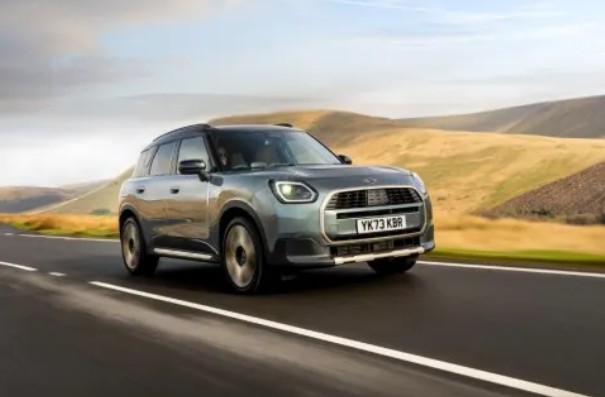
Let’s be honest—getting your phone to sync with your car should feel like magic, not a puzzle. Yet, if you’ve ever sat inside a MINI Countryman tapping buttons and wondering why your phone won’t connect, you’re not alone.
In this guide, we’ll walk through everything—Bluetooth pairing, USB connections, Apple CarPlay, Android compatibility, troubleshooting, and even hidden tricks most drivers never discover. Think of this as your co-pilot manual.
Content in this publication
- Why Connecting Your Phone Matters More Than You Think
- Understanding Your MINI Countryman System
- Bluetooth Connection: The Most Common Method
- USB Connection: The Reliable Backup Plan
- Apple CarPlay: The iPhone Experience, Elevated
- Android Phones: What You Need to Know
- Connecting Multiple Phones
- Troubleshooting Connection Problems
- Hidden Settings You Should Explore
- Voice Control: Your Hands-Free Assistant
- Security and Privacy Considerations
- Software Updates: The Silent Game-Changer
- Common Mistakes to Avoid
- Quick Checklist: Connect in Under 2 Minutes
- Real-Life Scenario: First-Time Setup
- Advanced Tips for Power Users
- When You Should Seek Professional Help
- Closing Thoughts: Turn Your Drive Into an Experience
- FAQs
Why Connecting Your Phone Matters More Than You Think
We’re not just pairing devices—we’re merging ecosystems. Your phone becomes your dashboard assistant.
What You Unlock
- Hands-free calls and messaging
- Music streaming (Spotify, Apple Music, etc.)
- Navigation apps like Google Maps or Waze
- Voice control via Siri or Google Assistant
It’s like turning your car into a smarter version of your phone… with wheels.
Understanding Your MINI Countryman System
Before we connect anything, we need to know what we’re working with.
Infotainment System Types
Different MINI Countryman models come with:
- MINI Visual Boost Radio
- MINI Navigation System
- MINI Connected System
Each supports slightly different connection features.
Bluetooth Connection: The Most Common Method
Step-by-Step: Pairing Your Phone via Bluetooth
Let’s keep this simple and smooth:
- Turn on your car ignition
- Go to Settings → Mobile Devices → Connect New Device
- Select Phone Calls and Audio
- Enable Bluetooth on your phone
- Select “MINI XXXX” from available devices
- Confirm pairing code on both devices
Boom—you’re connected.
Pro Tip: Make It Automatic
Once paired, your phone should reconnect automatically every time you enter the car—like a loyal companion that never forgets you.
USB Connection: The Reliable Backup Plan
Sometimes Bluetooth acts like it woke up on the wrong side of the bed. That’s where USB steps in.
How to Connect via USB
- Plug your phone into the USB port
- Select Media/USB input on the screen
- Allow permissions on your phone
When to Use USB
- For faster charging
- For stable music playback
- When Bluetooth fails
Think of it as the “wired certainty” in a wireless world.
Apple CarPlay: The iPhone Experience, Elevated
If you’re using an iPhone, this is where things get exciting.
What is Apple CarPlay?
Apple CarPlay mirrors your iPhone onto your car’s display.
How to Connect Apple CarPlay
- Ensure CarPlay is enabled in your MINI settings
- Turn on Bluetooth and Wi-Fi on your iPhone
- Pair your phone
- Accept CarPlay prompt
Wireless vs Wired
- Newer models: Wireless CarPlay
- Older models: USB required
What You Can Do with CarPlay
- Use Siri for voice commands
- Access maps, calls, messages
- Control music apps seamlessly
It feels like your dashboard just learned how to speak iPhone.
Android Phones: What You Need to Know
Here’s the truth—not all MINI Countryman models support Android Auto.
Android Compatibility Options
- Bluetooth (calls + audio)
- USB media playback
Important Note
Android Auto is not officially supported in many MINI models.
Workarounds
- Use phone mount + voice assistant
- Use Bluetooth for audio and calls
Not perfect, but still functional.
Connecting Multiple Phones
We’ve all been there—two drivers, one car.
How to Manage Multiple Devices
- Go to Mobile Devices menu
- Set a primary device
- Switch manually if needed
Priority Tip
The car usually connects to the last paired device automatically.
Troubleshooting Connection Problems
Let’s tackle the annoying stuff head-on.
If Bluetooth Won’t Connect
- Restart your phone
- Turn Bluetooth off/on
- Delete and re-pair device
If Audio Isn’t Playing
- Check media source selection
- Increase volume (yes, really)
- Ensure phone audio output is correct
If CarPlay Doesn’t Work
- Check compatibility
- Update iPhone software
- Reset infotainment system
Audio Settings Optimization
- Adjust bass and treble
- Enable surround sound if available
Notification Controls
Choose what alerts appear on screen—less distraction, more control.
Voice Control: Your Hands-Free Assistant
Using Voice Commands
- Press steering wheel voice button
- Activate Siri or Google Assistant
Why It Matters
It keeps your hands on the wheel and your focus on the road.
Security and Privacy Considerations
We often forget this part.
Before Selling Your Car
- Remove all paired devices
- Reset infotainment system
Data Safety Tips
- Avoid syncing sensitive apps
- Disable auto-sync if needed
Software Updates: The Silent Game-Changer
Why Updates Matter
They fix bugs, improve connectivity, and sometimes unlock new features.
How to Update
- Visit MINI service center
- Use MINI Connected app if supported
Common Mistakes to Avoid
Let’s save you some frustration:
- Pairing multiple times without deleting old profiles
- Ignoring software updates
- Using incompatible cables
- Forgetting to enable permissions
Quick Checklist: Connect in Under 2 Minutes
- Bluetooth ON
- Select MINI device
- Confirm pairing code
- Enable permissions
- Done
Real-Life Scenario: First-Time Setup
Picture this—you just bought your MINI Countryman. You sit inside, slightly excited, slightly confused.
Instead of guessing, you follow this guide—and within minutes, your favorite playlist fills the cabin.
That’s the difference between frustration and flow.
Advanced Tips for Power Users
Dual Audio Streaming
Some models allow switching between devices without disconnecting.
Use MINI Connected App
MINI Connected enhances integration with your car.
Customize Profiles
Set different preferences for different drivers.
When You Should Seek Professional Help
If nothing works:
- Infotainment system may need reset
- Hardware issues may exist
- Visit authorized MINI service
Closing Thoughts: Turn Your Drive Into an Experience
Connecting your phone to your MINI Countryman isn’t just about convenience—it’s about transforming every drive into something smarter, smoother, and more personal.
Once everything clicks, it feels effortless—like your car finally understands you.
And honestly, isn’t that what great tech should do?
FAQs
1. Why won’t my phone connect to my MINI Countryman?
Usually due to Bluetooth conflicts or outdated software. Reset and re-pair often fixes it.
2. Does MINI Countryman support Android Auto?
Most models don’t support it natively, but Bluetooth still works for calls and audio.
3. Can I connect multiple phones at once?
Yes, but only one can be active for calls/audio at a time.
4. Is Apple CarPlay wireless?
Yes, in newer MINI Countryman models. Older ones may require USB.
5. How do I reset Bluetooth connections?
Go to mobile devices settings and delete all paired devices, then reconnect.
If you want to know other articles similar to How to Connect Phone to MINI Countryman: The Complete Step-by-Step Guide you can visit the category Service and Parts.
Kia Sorento Service Reset: How to Reset the Service Light
Kia Sorento Fuel Tank Capacity: Gallons, Litres and Model Differences
Kia Sorento Tyre Pressure: Recommended PSI, Bar and Complete Guide
Kia Sorento Boot Space: How Much Luggage Space Does It Really Have?
Kia Sorento Towing Capacity: How Much Can a Sorento Tow?
Honda Passport Payload Capacity: How Much Weight Can It Carry?
Leave a Reply
More content of your interest