
Vauxhall Insignia Infotainment Reset: The Complete Guide to Fixing Screen, Audio, and Connectivity Problems

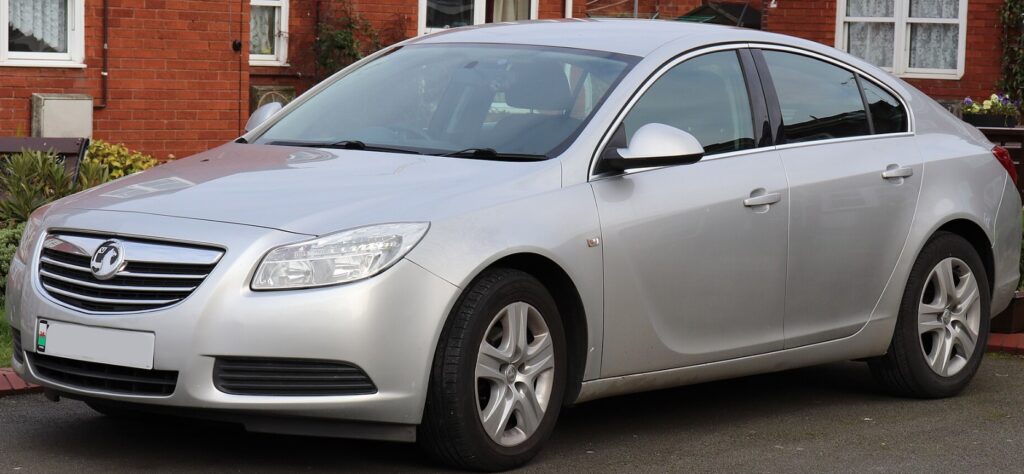
Modern cars are no longer just machines that get us from one destination to another. They're rolling computers, packed with navigation, Bluetooth connectivity, smartphone integration, digital radio, voice commands, and advanced multimedia features. The Vauxhall Insignia is no exception. Its infotainment system serves as the hub for entertainment, communication, and navigation, making every drive more enjoyable—until something suddenly stops working.
If your screen freezes, the Bluetooth disconnects repeatedly, the navigation refuses to load, or the display stays black, you might think an expensive repair is waiting around the corner. Fortunately, many of these issues can be solved with a simple Vauxhall Insignia infotainment reset.
Resetting the infotainment system is similar to restarting a computer or smartphone. Temporary software glitches disappear, memory clears, and the operating system gets a fresh start. In many situations, this simple procedure restores normal operation in just a few minutes without requiring replacement parts or a visit to the dealership.
This guide explains everything you need to know, from identifying the symptoms of a failing infotainment system to safely performing both soft and factory resets.
Content in this publication
Why You Might Need an Infotainment Reset
Like every electronic device, the infotainment system constantly processes information. It communicates with your phone, GPS satellites, USB devices, steering wheel controls, cameras, and various control modules throughout the vehicle.
Occasionally, software conflicts develop. These conflicts may occur after connecting a new phone, installing a software update, disconnecting the battery, or simply because the system has been running continuously for weeks.
A reset clears temporary faults without affecting the mechanical components of the vehicle.
Common reasons include:
- Frozen touchscreen
- Black display
- Bluetooth pairing failures
- Navigation not loading
- Radio refusing to play
- USB devices not recognized
- Apple CarPlay disconnecting
- Android Auto crashing
- Slow menu response
- Audio cutting in and out
Fortunately, many of these problems are software-related rather than hardware failures.
Common Signs Your Vauxhall Insignia Needs a Reset
Software problems often appear gradually before becoming more serious.
Some drivers notice that the touchscreen responds slowly. Others find that the radio randomly switches stations or loses saved presets. Sometimes the system may restart repeatedly during driving.
Other common symptoms include:
Blank or Black Screen
The display remains completely dark while the rest of the vehicle operates normally.
Frozen Touchscreen
Buttons appear on the display but touching them produces no response.
Bluetooth Problems
Your phone refuses to reconnect automatically even after previously working perfectly.
Maps freeze, loading never completes, or GPS positioning becomes inaccurate.
No Audio Output
The radio appears functional, but no sound comes through the speakers.
Random System Restarts
The infotainment system continuously reboots while driving.
These symptoms usually indicate that software has become unstable rather than permanently damaged.
Before Performing an Infotainment Reset
Before pressing any reset buttons, it's worth spending a few minutes preparing.
Doing so reduces the chance of losing personal settings and helps identify whether another issue is responsible.
Save Important Settings
A factory reset may erase:
- Radio presets
- Bluetooth devices
- Wi-Fi passwords
- Navigation favorites
- Display preferences
- Audio equalizer settings
If possible, write these down beforehand.
Check Battery Voltage
Many infotainment issues are actually caused by low battery voltage.
If the vehicle battery is weak, modules may restart unexpectedly or fail to boot correctly.
Signs of a weak battery include:
- Slow engine cranking
- Flickering dashboard lights
- Multiple warning messages
- Clock resetting after starting
- Intermittent electronic faults
If your battery is several years old, testing it before diagnosing the infotainment system can save considerable time.
Understanding the Difference Between a Soft Reset and a Factory Reset
Not all resets are the same.
Knowing which reset to perform first can prevent unnecessary data loss.
Soft Reset
A soft reset simply restarts the operating system.
It keeps:
- Saved phones
- Radio presets
- Navigation history
- Personal preferences
- Vehicle settings
Think of it as restarting your laptop after it freezes.
Factory Reset
A factory reset completely restores the infotainment software to its original configuration.
Everything stored within the multimedia system is erased.
This type of reset should only be performed when software problems continue after attempting a soft restart.
How to Perform a Soft Reset
The safest and easiest procedure is always a soft reset.
Most Vauxhall Insignia infotainment systems allow this without disconnecting the battery.
Many Insignia models restart the multimedia software by holding the power or volume knob for approximately 10–15 seconds.
Keep holding until:
- The display turns black.
- The Vauxhall logo appears.
- The system begins restarting.
After several seconds, normal operation usually returns.
This procedure fixes many temporary software crashes.
Method 2: Restart the Vehicle
Sometimes the infotainment system only requires a complete ignition cycle.
Follow these steps:
- Turn off the engine.
- Remove the key or switch off the ignition.
- Exit the vehicle.
- Lock all doors.
- Wait five to ten minutes.
- Restart the vehicle.
Allowing every electronic module to power down completely often clears communication errors between control units.
Method 3: Disconnect External Devices
USB drives, smartphones, and Bluetooth accessories occasionally trigger software conflicts.
Disconnect:
- USB cables
- Flash drives
- Android Auto devices
- Apple CarPlay devices
- Bluetooth accessories
Restart the system before reconnecting each device individually.
If the problem disappears, one accessory may have been causing the issue.
Performing a Factory Reset
If repeated soft resets fail to resolve persistent problems, restoring factory settings may be the next logical step.
Navigate through the infotainment menus until you locate the Settings section. Depending on the software version installed in your Vauxhall Insignia, you may find an option labeled System, Restore Defaults, or Factory Reset. Selecting this option will erase all personalized data stored in the multimedia unit, including paired phones, saved destinations, radio presets, and customized display preferences.
Before confirming the reset, ensure the vehicle battery is fully charged or keep the engine running to prevent power loss during the process. Interrupting a factory reset can occasionally corrupt software and require dealer intervention.
Once the reset begins, the screen may go black several times before displaying the startup logo. This is completely normal. Allow the process to finish without pressing buttons or turning off the ignition. After completion, you'll need to pair your phone again, configure audio settings, and restore any preferred options.
For many owners, a factory reset successfully resolves persistent glitches that a simple reboot cannot fix, especially after failed software updates or recurring Bluetooth synchronization issues. If problems continue even after restoring factory settings, the issue may be related to hardware components such as the touchscreen, display module, wiring, or the infotainment control unit itself. At that stage, professional diagnostics using manufacturer-specific equipment is recommended before replacing expensive parts.
If you want to know other articles similar to Vauxhall Insignia Infotainment Reset: The Complete Guide to Fixing Screen, Audio, and Connectivity Problems you can visit the category Service and Parts.
Nissan Qashqai Fuel Tank Capacity: Complete Guide

Suzuki Swift Fuel Tank Capacity: Complete Guide
Mazda CX-5 Weight (2013–2026): Complete Guide in Pounds and KG

Kia Sportage Dashboard Symbols and Warning Lights

MINI Cooper Weight (2002–2027): Complete Weight Chart & Guide

Toyota RAV4 Engine Sizes: Complete Guide (1994–2026)
Leave a Reply
More content of your interest