
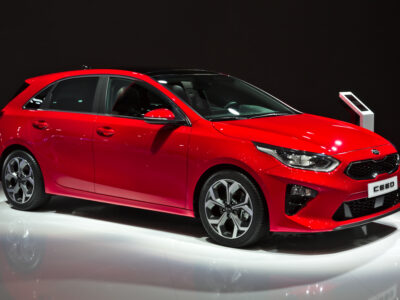
Haval Jolion Wireless Charging Not Working: Causes and Fixes

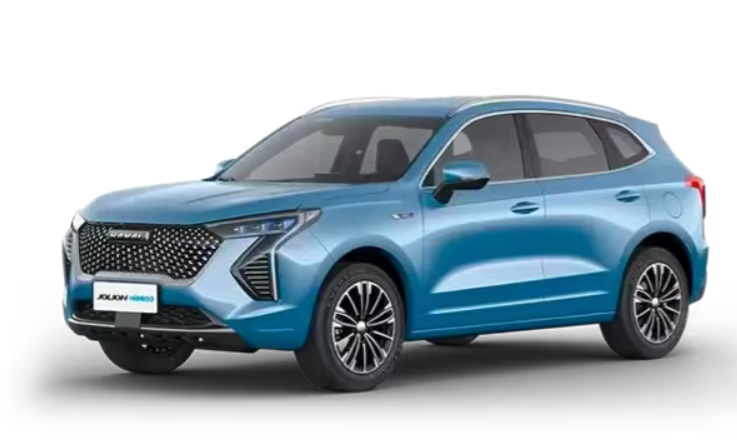
If your Haval Jolion wireless charging is not working, the problem is often simpler than it first appears. The charging function may have been disabled in the vehicle settings, the phone may not be positioned correctly, a thick case can interfere with charging, or the system may temporarily stop because of excessive heat.
The Jolion's wireless charging system is also slightly different from simply putting a phone on a home Qi charger. Depending on the model year and market, the vehicle may require certain operating conditions before it activates.
In this guide, we'll explain why your Haval Jolion wireless charger is not working, how to troubleshoot it step by step, and how to tell whether the problem is coming from your phone or the vehicle.
Content in this publication
- Why Is My Haval Jolion Wireless Charging Not Working?
- 1. Check Whether Wireless Charging Is Turned On
- 2. Close All the Doors
- 3. Make Sure the Engine or Ignition Is On
- 4. Check Whether Your Phone Supports Wireless Charging
- 5. Remove the Phone Case
- 6. Reposition the Phone on the Charging Pad
- 7. Remove Coins, Keys and Cards From the Charging Area
- 8. Check Whether the Phone Is Getting Too Hot
- 9. Wireless Charging Starts and Stops While Driving
- 10. Haval Jolion Wireless Charger Works but Charges Very Slowly
- 11. Haval Jolion Wireless Charging Stops at 50%
- 12. Restart Your Phone
- 13. Restart the Haval Jolion Infotainment System
- 14. Test Another Compatible Phone
- 15. Confirm Your Jolion Actually Has Wireless Charging
- 16. Check for a Wireless Charging Warning
- 17. Clean the Wireless Charging Pad
- 18. Could a Fuse Cause the Haval Jolion Wireless Charger to Stop Working?
- 19. Signs the Wireless Charging Module May Be Faulty
- Haval Jolion Wireless Charging Troubleshooting Checklist
- Haval Jolion Wireless Charging vs USB Charging
- When Should You Contact a Haval Dealer?
- Frequently Asked Questions
- Final Thoughts
Why Is My Haval Jolion Wireless Charging Not Working?
The most common reasons include:
- Wireless charging has been disabled in the infotainment settings.
- One or more vehicle doors are open.
- The ignition is not switched on.
- Your phone does not support Qi wireless charging.
- The phone is incorrectly positioned on the charging pad.
- A thick or magnetic phone case is interfering with charging.
- Coins, keys, cards, or another object are on the charging pad.
- The phone or charging pad is overheating.
- The phone moves while driving.
- The phone's charging coil does not line up properly with the vehicle's coil.
- There is a software or infotainment glitch.
- The wireless charging module has developed a fault.
The Jolion owner's information specifically notes that wireless charging can be enabled or disabled through the vehicle settings and that charging can stop temporarily if excessive heat is detected.
1. Check Whether Wireless Charging Is Turned On
This should be our first check because the Jolion allows the wireless charging function to be disabled through its infotainment system.
Depending on your model year and market, look for a menu similar to:
Car Settings > Comfort Settings > Wireless Charging
Make sure the wireless charging option is enabled.
There may also be a separate option for wireless charging reminders or notifications.
If the charging pad suddenly stopped working after someone changed vehicle settings, this may be the entire problem.
Turn It Off and Back On
If wireless charging already appears enabled:
- Turn wireless charging off.
- Wait several seconds.
- Turn it back on.
- Remove your phone from the pad.
- Put the phone back onto the charging area.
This simple reset can clear a temporary software problem.
2. Close All the Doors
This is an unusual Jolion-specific detail that can easily make us think the charger has failed.
According to the Jolion owner's documentation, after wireless charging has been activated, the side doors should be closed and the ignition should be switched on or the engine started before charging the phone.
Therefore, if you are testing the charger while sitting in the driveway with the driver's door open, the charger may appear not to work.
Try this:
- Sit inside the vehicle.
- Close all doors.
- Start the Jolion.
- Place the phone on the charging pad.
Owners have also reported situations where closing the doors immediately restored charging.
3. Make Sure the Engine or Ignition Is On
Wireless charging requires electrical power from the vehicle.
Start the engine or put the vehicle into the appropriate ignition-on mode before testing the charging pad.
We wouldn't recommend diagnosing the system with the vehicle completely switched off.
The owner's manual also warns against using wireless charging for extended periods with the engine off because it can contribute to 12-volt battery discharge.
4. Check Whether Your Phone Supports Wireless Charging
Not every smartphone can charge wirelessly.
The Jolion system is designed for compatible Qi wireless-charging devices.
Many recent premium and mid-range phones support Qi charging, including numerous models from:
- Apple
- Samsung
- Xiaomi
- Huawei
- Motorola
However, wireless charging capability varies significantly between models.
For example, having a USB-C charging port does not automatically mean a phone supports wireless charging.
Test Your Phone With Another Wireless Charger
One of the easiest diagnostic tests is to place your phone on a known-working household wireless charger.
If it does not charge there either, the Jolion probably isn't the problem.
If the phone charges perfectly on another charger but not inside your Haval, continue with the steps below.
5. Remove the Phone Case
A phone case can cause wireless charging problems even when the phone itself is fully compatible.
Try removing:
- Thick protective cases
- Wallet cases
- Cases containing cards
- Metal cases
- Magnetic mounts
- PopSockets
- Metal plates used with dashboard holders
Then place the bare phone directly on the Jolion charging pad.
The Jolion manual also advises removing accessories or objects that can prevent wireless charging.
MagSafe Cases Can Sometimes Cause Problems
An iPhone with a MagSafe-compatible case may work perfectly, but not every magnetic case has the same design.
Third-party cases with large magnets or metal components may interfere with coil alignment.
Testing the phone without its case takes less than a minute and eliminates one major variable.
6. Reposition the Phone on the Charging Pad
Wireless charging depends heavily on alignment.
Inside both the phone and charging pad is a charging coil. These coils need to overlap closely enough for energy to transfer efficiently.
Move the phone slightly:
- Forward
- Backward
- Left
- Right
Then wait a few seconds after every adjustment.
Sometimes moving the phone only one or two centimetres is enough to start charging.
Large Phones Can Be More Difficult to Align
Phones with large camera bumps can sit slightly above the charging surface.
This can increase the distance between the two charging coils and make charging inconsistent.
Removing the case can help.
7. Remove Coins, Keys and Cards From the Charging Area
The charging pad should contain only your phone.
Do not leave items such as:
- Coins
- Keys
- Credit cards
- Metal objects
- RFID cards
- Parking cards
under or next to the phone.
Haval specifically warns against putting coins, keys, cards and other metallic items in the wireless charging area because they can interfere with charging and potentially heat up.
This is particularly important if you normally use the wireless charging area as a storage tray.
Clear everything out before testing it again.
8. Check Whether the Phone Is Getting Too Hot
Heat is one of the biggest enemies of wireless charging.
Wireless charging naturally generates more heat than conventional wired charging because energy is transferred inductively.
The Jolion's system may temporarily interrupt charging if excessive temperature is detected and resume once the temperature drops.
You may notice this when:
- Driving on a hot day
- Parking the vehicle in direct sunlight
- Using GPS navigation
- Running wireless Apple CarPlay or Android Auto
- Streaming music
- Using mobile data heavily
- Charging while running demanding apps
How to Fix Haval Jolion Wireless Charging Overheating
Try:
- Removing the phone from the charger.
- Removing the phone case.
- Letting the phone cool for 10–15 minutes.
- Turning on the air conditioning.
- Closing unnecessary apps.
- Placing the phone back on the charger.
If wireless charging works again after everything cools down, the charging pad probably isn't defective.
9. Wireless Charging Starts and Stops While Driving
Another common complaint is a Jolion wireless charger that starts charging, stops, and then starts again.
Phone movement is a likely explanation.
The Jolion manual notes that charging can temporarily stop on rough roads if the phone moves away from the correct charging position.
This can happen over:
- Potholes
- Speed bumps
- Rough roads
- Sharp corners
- Sudden braking
Try carefully repositioning the phone once you are safely stopped.
A phone with a slippery case may move more easily than one with a rubberized case.
10. Haval Jolion Wireless Charger Works but Charges Very Slowly
A charger can technically be working without increasing the phone's battery percentage very quickly.
This is especially noticeable when the phone is simultaneously using:
- GPS navigation
- Bluetooth
- Wireless CarPlay
- Android Auto
- Spotify or other streaming apps
- High screen brightness
- Mobile hotspot
- Multiple background apps
Your phone may be consuming almost as much power as the wireless charger supplies.
Consequently, the battery level may increase very slowly or remain almost unchanged.
Some Jolion owners have reported similar behavior, including wireless charging maintaining the battery level rather than rapidly increasing it during heavy phone use.
Try a Controlled Test
A useful test is:
- Start with the phone at around 30–50%.
- Turn the screen off.
- Close navigation and demanding apps.
- Disable wireless CarPlay temporarily if possible.
- Put the phone on the charger.
- Drive for approximately 20 minutes.
Then check whether the battery percentage has increased.
If it has, the charger works but may simply struggle to overcome the phone's power consumption during heavy use.
11. Haval Jolion Wireless Charging Stops at 50%
Some owners have reported situations where their phone charges normally until roughly 50% and then appears to stop increasing.
This does not necessarily mean the charger has a programmed 50% limit.
There are several possible explanations:
- Phone temperature protection
- Increased device power consumption
- Poor coil alignment
- Intermittent charging
- Battery-management software
- Wireless charger output versus phone consumption
Owners have reported examples of Jolion wireless charging appearing to stall around the 50% range while the same phone continued charging normally over a cable.
To isolate the problem, test the phone:
- Without its case.
- While it is cool.
- With the screen off.
- Without navigation.
- On another Qi charger.
If it charges beyond 50% elsewhere, the vehicle charger or its operating environment becomes the more likely explanation.
12. Restart Your Phone
Sometimes the vehicle isn't the problem at all.
The phone's wireless charging controller can occasionally stop responding correctly.
Restart your phone completely and test it again.
For an iPhone, also check for the latest stable iOS software available for your device.
For Android phones, check your phone manufacturer's system update menu.
Software updates can change battery management, charging behavior and temperature protection.
13. Restart the Haval Jolion Infotainment System
If the wireless charging option has disappeared, doesn't respond, or suddenly stopped functioning even though everything else appears correct, an infotainment restart may help.
A simple vehicle power cycle is usually the safest first approach:
- Park the vehicle safely.
- Switch the vehicle off.
- Exit the vehicle.
- Lock it.
- Allow the vehicle electronics to shut down.
- Restart the vehicle.
- Check the wireless charging setting again.
Avoid disconnecting the vehicle's 12-volt battery simply to troubleshoot a wireless charger unless the correct procedure is known, because disconnecting vehicle power can affect other electronic systems and stored settings.
14. Test Another Compatible Phone
This is one of the most useful diagnostic steps.
Borrow another Qi-compatible smartphone and place it on the Jolion charger.
If the Second Phone Charges
The problem is probably associated with your original phone, its case, alignment or charging settings.
If Neither Phone Charges
The problem is more likely related to:
- Vehicle configuration
- Wireless charging settings
- Charging pad
- Power supply
- Wiring
- Wireless charging module
- Infotainment software
Haval itself recommends using another compatible phone as part of diagnosing whether charging failure is caused by the device.
15. Confirm Your Jolion Actually Has Wireless Charging
This sounds obvious, but it is worth checking.
Haval Jolion specifications differ according to:
- Country
- Model year
- Trim level
- Petrol or hybrid configuration
- Optional equipment
A tray that visually resembles a wireless charging pad does not necessarily mean every version has active wireless charging hardware.
The Jolion documentation specifically notes that equipment described in the manual may not be installed on every vehicle and can vary depending on the market and specification.
Check your vehicle's original specification or ask a Haval dealer using your VIN if you're uncertain.
16. Check for a Wireless Charging Warning
Depending on your Jolion's infotainment version, the system may display a notification or provide a charging status reminder.
Pay attention to warnings that appear immediately after putting the phone onto the pad.
A warning may indicate:
- Foreign object detected
- Incorrect positioning
- Charging interrupted
- Excessive temperature
- Charging unavailable
Do not repeatedly reposition the phone while driving. Stop somewhere safe before troubleshooting.
17. Clean the Wireless Charging Pad
Dust usually won't completely disable a wireless charger, but dirt, loose objects and debris can prevent a phone from sitting flat.
Clean the surface using a soft microfiber cloth.
Avoid soaking the area with cleaning products.
Also inspect the pad for:
- Spilled drinks
- Sticky residue
- Cracks
- Warping
- Objects trapped around the edges
The phone should sit as flat and securely as possible.
18. Could a Fuse Cause the Haval Jolion Wireless Charger to Stop Working?
Potentially, but we wouldn't start replacing fuses randomly.
Vehicle electrical layouts can vary between model years and markets.
If the wireless charging system is completely dead and multiple compatible phones have failed to charge, check the fuse information provided for your particular Jolion.
Do not assume that a fuse diagram found online for another Jolion year, trim or country is identical to yours.
If a fuse has failed, replace it only with the specified fuse type and rating.
If a replacement fuse immediately fails again, there may be an electrical fault that requires professional diagnosis.
19. Signs the Wireless Charging Module May Be Faulty
A hardware problem becomes more likely when:
- Wireless charging is enabled.
- The vehicle is running.
- All doors are closed.
- Multiple Qi-compatible phones have been tested.
- All phone cases have been removed.
- Nothing else is on the charging pad.
- The phones charge successfully on other wireless chargers.
- The Jolion charger never detects any of them.
At this point, the wireless charging module, connector, wiring or control electronics may need inspection.
Haval Jolion Wireless Charging Troubleshooting Checklist
Before booking a workshop visit, we would work through this checklist:
| Check | What to Do |
|---|---|
| Wireless charging setting | Make sure it is switched on |
| Doors | Close all side doors |
| Ignition | Start the vehicle |
| Phone compatibility | Confirm Qi wireless charging support |
| Phone case | Remove it |
| Position | Reposition the phone |
| Metal objects | Remove coins, keys and cards |
| Temperature | Allow phone and charger to cool |
| Phone software | Restart and update |
| Vehicle electronics | Power-cycle the vehicle |
| Second phone | Test another Qi-compatible device |
| Vehicle specification | Confirm your trim has wireless charging |
Working through these checks systematically prevents us from replacing components unnecessarily.
Haval Jolion Wireless Charging vs USB Charging
If wireless charging works but is simply too slow for your needs, USB charging can be the better solution.
Wireless charging prioritizes convenience.
Wired charging generally makes more sense when:
- Your battery is very low.
- You're using GPS continuously.
- You're taking a long journey.
- Wireless charging is causing excessive heat.
- You need a faster increase in battery percentage.
There is nothing wrong with using USB instead of wireless charging.
If the phone remains stable or slowly loses charge while running navigation on the wireless pad, switching to a cable may provide a more practical result.
When Should You Contact a Haval Dealer?
Consider professional diagnosis when the charger remains completely inactive after all basic troubleshooting.
This is especially appropriate when:
- Several compatible phones fail to charge.
- The wireless charging option is missing from a vehicle known to have the feature.
- The system repeatedly reports an error.
- Charging stopped suddenly and never returned.
- The pad becomes abnormally hot.
- There is visible damage.
- The problem started after electrical work on the vehicle.
If your Jolion is still covered by its applicable new-car warranty, ask the dealer whether diagnosis or repair of the wireless charging system is covered under your specific warranty conditions.
Frequently Asked Questions
Why is my Haval Jolion wireless charger not working?
Common causes include disabled wireless charging settings, open doors, incorrect phone positioning, an incompatible phone, a thick phone case, excessive heat or a problem with the wireless charging module.
Start by enabling wireless charging, closing the doors, starting the vehicle and testing the phone without its case.
How do I turn on wireless charging in a Haval Jolion?
On Jolion versions equipped with the feature, look in the infotainment system under a menu similar to Car Settings > Comfort Settings and enable wireless charging.
Menu wording can vary slightly between model years and markets.
Why does my Haval Jolion wireless charger keep disconnecting?
The phone may be moving out of alignment, overheating or being affected by a thick case. Rough roads can also move the phone enough for charging to temporarily stop.
Test it without the case and make sure the phone is correctly centered on the pad.
Why is my Haval Jolion wireless charging so slow?
Wireless charging may struggle to increase the battery quickly when your phone is simultaneously running navigation, wireless CarPlay, Bluetooth, streaming apps and a bright display.
Try charging with the screen off and unnecessary applications closed.
Does every Haval Jolion have wireless charging?
No. Equipment varies according to trim level, model year and country.
Check the specifications for your exact vehicle rather than assuming every Jolion has the same equipment.
Final Thoughts
When Haval Jolion wireless charging is not working, we shouldn't immediately assume that the charging pad has failed.
Start with the simple things: make sure wireless charging is enabled, close the doors, start the vehicle, remove the phone case and carefully reposition the phone. Then remove any coins or cards from the charging area and make sure the phone isn't overheating.
Testing another Qi-compatible phone is particularly useful. If two or three compatible devices all charge normally elsewhere but none of them work in your Jolion, the evidence starts pointing toward the vehicle rather than the phone.
On the other hand, if the charger works intermittently or charges very slowly while navigation, wireless phone projection and streaming apps are running, the system may still be operating normally but struggling to keep up with the phone's power consumption.
By troubleshooting the system methodically, we can usually determine whether we're dealing with a simple setting, phone compatibility issue, overheating problem or an actual Haval Jolion wireless charging fault.
If you want to know other articles similar to Haval Jolion Wireless Charging Not Working: Causes and Fixes you can visit the category Common Problems.
The Most Common Kia Ceed Problems: Reliability, Known Faults, Repair Costs and What to Watch For
Common Kia Sportage Problems: What Owners Should Know
Toyota Yaris Cross Common Problems: Reliability, Known Issues, and What Owners Should Know
Toyota Corolla Cross Issues: Common Problems and Fixes
MG HS Problems: Common Faults, Reliability and Years to Avoid (2019–2026)
Toyota Yaris Cross Battery Problems: Causes & Fixes
Leave a Reply
More content of your interest