
How to Update Hyundai i30 Software: The Complete Step-by-Step Guide for a Smoother Drive

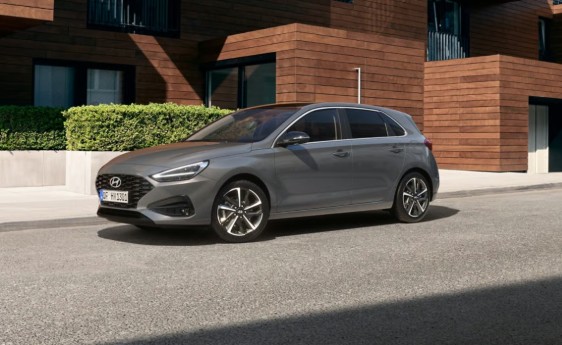
Updating your car’s software might sound like something reserved for tech geeks—but in reality, it’s as essential as changing your oil. If you own a Hyundai i30, keeping its software up to date can transform your driving experience, improve performance, and even fix hidden bugs you didn’t know existed.
So, how do we actually do it? Is it complicated? Risky? Worth it?
Let’s walk through everything together—step by step—like we’re standing in your garage with a USB stick in hand.
Content in this publication
- Why Software Updates Matter More Than You Think
- Types of Software Updates in the Hyundai i30
- How to Check If Your Hyundai i30 Needs an Update
- Preparation Before Updating Your Hyundai i30
- Downloading the Hyundai i30 Software Update
- Installing the Update in Your Hyundai i30
- What Happens During the Update?
- Common Problems and How to Fix Them
- Can You Update Hyundai i30 Software Over the Air (OTA)?
- Dealer vs DIY Updates: Which Is Better?
- How Often Should You Update Your Hyundai i30?
- Hidden Benefits of Updating Your Hyundai i30
- Tips for a Smooth Update Experience
- Is It Safe to Update Your Hyundai i30 Software?
- What If You Skip Updates?
- Closing Thoughts: A Small Update, A Big Difference
- FAQs About Hyundai i30 Software Updates
Why Software Updates Matter More Than You Think
The Brain Behind the Wheel
Modern cars aren’t just machines—they’re rolling computers. Your i30 runs multiple systems:
- Infotainment system (navigation, music, Bluetooth)
- ECU (engine control unit)
- Driver assistance systems
- Connectivity features (Android Auto, Apple CarPlay)
Updating software is like giving your car a mental refresh.
Benefits You’ll Notice Immediately
- Faster infotainment response
- Improved navigation accuracy
- Bug fixes (no more freezing screens)
- Enhanced compatibility with smartphones
- New features (yes, sometimes you get surprises)
Think of it as upgrading from an old phone to a new one—same device, better experience.
Types of Software Updates in the Hyundai i30
Infotainment System Updates
These are the most common and user-friendly updates. They affect:
- Maps
- Media system
- UI responsiveness
Firmware / ECU Updates
These are more technical and often handled by dealerships. They improve:
- Engine performance
- Fuel efficiency
- Emissions control
If your GPS still thinks a roundabout is a field… it’s time to update.
How to Check If Your Hyundai i30 Needs an Update
Turn on your infotainment system and navigate to:
- Settings → General → System Info
Step 2: Check Software Version
Compare your current version with the latest available on the official Hyundai website.
Step 3: Watch for Signs You Need an Update
- Laggy touchscreen
- Bluetooth disconnects
- Outdated maps
- System crashes
If your car behaves like it had a bad night’s sleep… update time.
Preparation Before Updating Your Hyundai i30
What You’ll Need
- A USB drive (at least 32GB recommended)
- A computer with internet access
- Stable internet connection
- Your vehicle’s ignition ON (engine running preferred)
Backup? Not Necessary—but Smart
While updates rarely wipe data, it’s good practice to:
- Save favorite radio stations
- Note navigation preferences
Downloading the Hyundai i30 Software Update
Step 1: Visit the Official Update Tool
Head to Hyundai’s Navigation Updater software.
Step 2: Install the Updater Program
Download and install it on your computer.
Step 3: Select Your Vehicle Model
Choose:
- Hyundai i30
- Correct year and region
Step 4: Insert USB Drive
Plug in your USB drive and let the software detect it.
Step 5: Download Files
The updater will automatically:
- Format your USB
- Download the correct update
- Install files onto the USB
This process can take 20–60 minutes depending on your internet speed.
Installing the Update in Your Hyundai i30
Step-by-Step Installation Process
- Start your car (engine ON recommended)
- Insert the USB into the car’s USB port
- The system will detect the update automatically
- Confirm installation when prompted
- Wait patiently (20–40 minutes)
Important Rules During Installation
- ❌ Do NOT turn off the engine
- ❌ Do NOT remove the USB
- ❌ Do NOT press random buttons
Treat it like surgery—hands off.
What Happens During the Update?
System Reboot Cycles
Your screen may:
- Turn black
- Restart multiple times
- Show progress bars
Don’t panic—it’s normal.
Final Confirmation
Once complete, you’ll see:
- “Update Successful” message
- System reboot
Common Problems and How to Fix Them
Update Not Detected
- Ensure USB is formatted correctly
- Re-download files
- Use a different USB port
Installation Freezes
- Wait at least 30 minutes before acting
- Restart car ONLY if completely stuck
Wrong Version Installed
- Double-check model/year before downloading
Can You Update Hyundai i30 Software Over the Air (OTA)?
Short Answer: Sometimes
Newer Hyundai models support OTA updates, but most i30 versions require USB updates.
Future Outlook
OTA updates are becoming more common—your next car might update like your smartphone.
Dealer vs DIY Updates: Which Is Better?
DIY Updates
✔ Free
✔ Convenient
✔ Fast
Dealer Updates
✔ Professional
✔ Includes ECU updates
✔ Recommended for major upgrades
If it’s a simple infotainment update—DIY wins.
How Often Should You Update Your Hyundai i30?
Recommended Frequency
- Every 6–12 months
- Whenever a new version is released
Pro Tip
Set a reminder—like checking your phone for updates.
Improved Fuel Efficiency
Software tweaks can optimize engine performance.
Better Safety Features
Updates can refine:
- Lane assist
- Parking sensors
- Collision warnings
Enhanced Driving Feel
Sometimes, your car just feels… smoother.
Tips for a Smooth Update Experience
- Use a high-quality USB drive
- Keep engine running
- Avoid interruptions
- Follow official instructions only
Is It Safe to Update Your Hyundai i30 Software?
Yes—If Done Correctly
Updates are designed to be safe. Risks only appear if:
- Power is lost during update
- Wrong files are used
Stick to official tools and you’ll be fine.
What If You Skip Updates?
Let’s be honest—nothing explodes. But:
- Bugs persist
- Maps become outdated
- Features lag behind
It’s like never updating your phone—you’ll feel it eventually.
Closing Thoughts: A Small Update, A Big Difference
Updating your Hyundai i30 isn’t just maintenance—it’s evolution. It’s the difference between driving a car that feels “okay” and one that feels sharp, responsive, and modern.
We often overlook these digital tune-ups, but they’re the silent upgrades that keep everything running like clockwork.
So next time your infotainment lags or your maps feel ancient—don’t ignore it. Plug in that USB and give your car the refresh it deserves.
FAQs About Hyundai i30 Software Updates
1. How long does a Hyundai i30 update take?
Typically between 20 and 60 minutes, depending on the update size.
2. Can I drive while updating the software?
It’s not recommended. Keep the car stationary with the engine running.
3. Will I lose my settings after an update?
Usually no, but it’s wise to back them up just in case.
4. Do updates improve performance?
Yes—especially infotainment speed, navigation accuracy, and system stability.
5. Is it free to update Hyundai i30 software?
Most infotainment updates are free when done yourself using Hyundai’s official tool.
If you want to know other articles similar to How to Update Hyundai i30 Software: The Complete Step-by-Step Guide for a Smoother Drive you can visit the category Service and Parts.
Kia Sorento Service Reset: How to Reset the Service Light
Kia Sorento Fuel Tank Capacity: Gallons, Litres and Model Differences
Kia Sorento Tyre Pressure: Recommended PSI, Bar and Complete Guide
Kia Sorento Boot Space: How Much Luggage Space Does It Really Have?
Kia Sorento Towing Capacity: How Much Can a Sorento Tow?

Honda Passport Payload Capacity: How Much Weight Can It Carry?
Leave a Reply
More content of your interest